
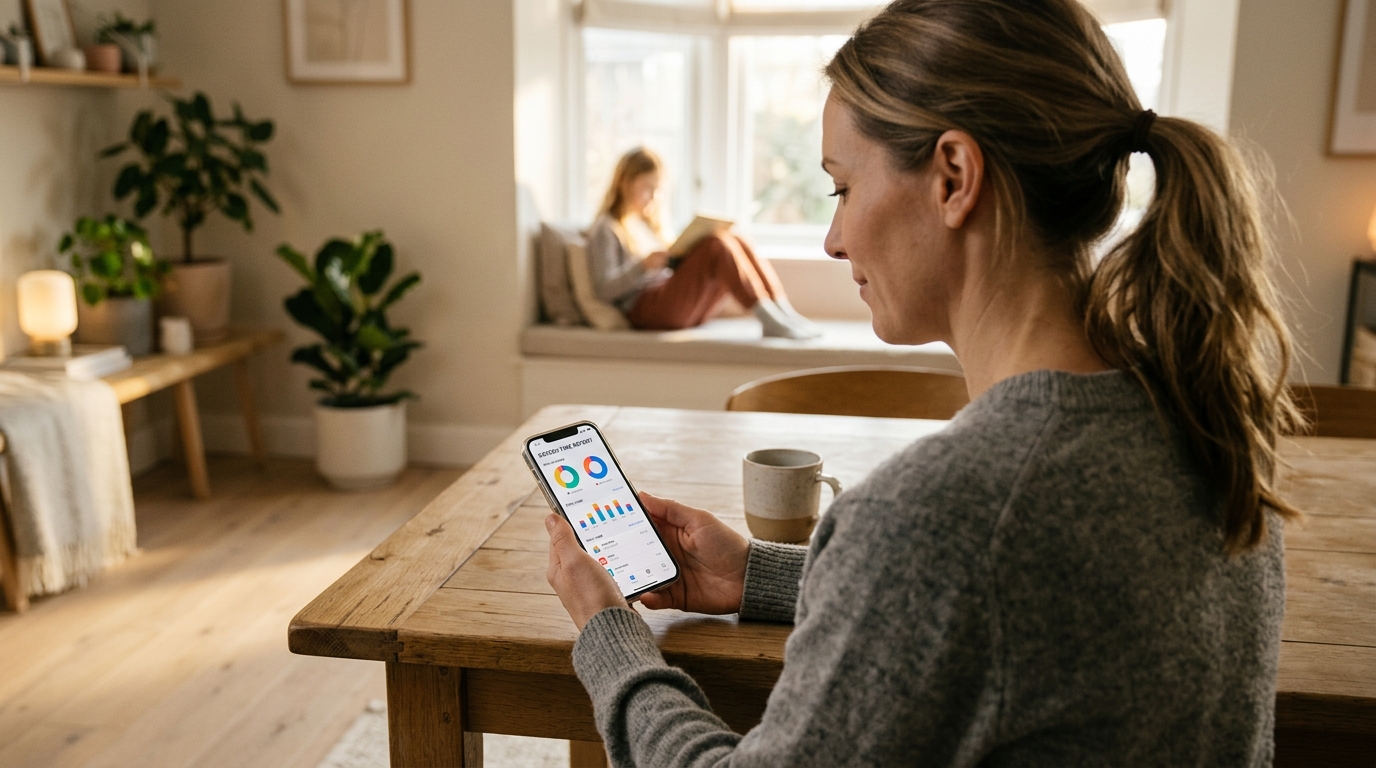
Every parent knows the familiar evening scene: your child has been glued to their phone screen for three straight hours. When asked, they quickly claim: "I was researching for my history project!" or "We're in a group study chat." But is that genuinely what happened? Or was 80% of that time consumed by short-form video algorithms, mobile gaming, and endless chat scrolling? Knowing how to track your child's app usage accurately is essential for modern parenting. In this comprehensive breakdown, we contrast native Android Digital Wellbeing, Google Family Link, and professional parental monitoring tools, revealing exactly what each method shows—and the dangerous blind spots they leave behind.
Which Method Fits Your Family?
Android Built-in Digital Wellbeing
Free and preinstalled, but provides zero remote monitoring. You must physically take their unlocked phone each night, and tech-savvy kids can clear its data.
Google Family Link
Enables remote checks and basic app caps. However, kids can opt out when turning 13, and it fails to report deleted apps or private browser sessions.
SmartFamilyEye Comprehensive Tracking
Hourly app timelines, background process detection, deleted app recovery, and automatic lockouts when limits are reached—zero blind spots.
3 Ways to Check App Usage on Your Child's Phone
Examine setup complexity, data visibility, and crucial limitations for each parental approach
Android Native "Digital Wellbeing" (Cihaz İçi Araç)
On-Device Native Tool📋 How to Check (3 Steps)
- Open Settings on your child's Android phone.
- Scroll down and tap Digital Wellbeing & Parental Controls.
- Tap the center of the circular graph to view daily and weekly app breakdowns.
👁️ What It Shows
- ✓ Daily hours and minutes spent inside each active app
- ✓ Total phone screen unlock count per day
- ✓ Number of notifications received per app
Google Family Link Parental Controls
Free Parental App📋 How to Setup & Check
- Install "Family Link (Parent)" on your phone and "Family Link (Child)" on their device.
- Link your child's Google account to your family group.
- Open your parent dashboard and tap "App Activity" to review usage stats.
👁️ What It Shows
- ✓ Remote viewing of app hours from your own smartphone
- ✓ App-specific daily allowances (e.g. max 1 hour of YouTube per day)
- ✓ Approval requests required before installing new apps from Play Store
SmartFamilyEye Complete Parental Guard
Total Protection & Full Visibility📋 How It Works
- Install SmartFamilyEye on your child's Android phone in under 2 minutes and link it to your dashboard.
- Open your parent portal via mobile or web browser.
- Access the real-time "App Analytics & Screen Time" timeline with live statistics.
👁️ What It Shows
- ✓ Hour-by-hour exact app usage timeline (know precisely which app was used at 14:30 vs 23:00)
- ✓ Full logging of deleted, hidden, or dual-space second accounts
- ✓ Holistic safety integration: social media monitoring, GPS location, and SMS/call filters
- ✓ Automatic gentle screen lockouts the second daily quotas expire
Native Tools vs. Family Link vs. SmartFamilyEye
Compare capabilities side-by-side to ensure complete digital transparency without blind spots
| Capability / Feature | Android Wellbeing | Google Family Link | SmartFamilyEye |
|---|---|---|---|
| Remote Tracking from Parent Phone | ❌ No (Physical check required) | ✅ Yes | ✅ Yes (Real-Time Live) |
| Hour-by-Hour Usage Timeline | ❌ Daily total only | ❌ Daily total only | ✅ Yes (Exact hourly breakdown) |
| Deleted & Hidden App Detection | ❌ Not shown | ❌ Frequently omitted | ✅ Yes (Instant audit trail) |
| Continues Beyond Age 13 | ⚠️ Child can bypass | ❌ Child can opt out at 13 | ✅ Yes (Full parental authority) |
| Tamper-Proof Uninstallation Lock | ❌ Easily bypassed | ⚠️ Vulnerable to safe-mode hacks | ✅ Yes (PIN-protected uninstall guard) |
| Category-Based Auto-Locking | ❌ Manual only | ⚠️ Basic limits | ✅ Yes (Games 45m, Study unlimited) |
| Social Media & Threat Alerts | ❌ None | ❌ None | ✅ Yes (AI safety scanning) |
| Live Location & Geofencing | ❌ None | ⚠️ Basic GPS | ✅ Yes (Real-time breadcrumbs + safe zones) |
How to Talk to Your Child After Reviewing App Usage
4 constructive communication rules that foster trust and self-discipline rather than resentment
Collaborate Instead of Accusing
Avoid saying "I caught you on TikTok for 3 hours!" Instead, try: "Let's look at our screen statistics together. Mine were a bit high this week too; how can we balance this?"
Trade App Time for Daily Goals
Rather than imposing a zero-screen ban, empower them: "You have 45 minutes of gaming on weekdays. Once your homework and sports are completed, you choose when to use it."
Make Digital Time Tangible
Children lose track of time on infinite feeds. Help them visualize that 3 hours equals playing two full soccer matches or reading half a book.
Clarify Safety as the True Purpose
Remind your child that parental monitoring is not about espionage—it is about keeping them safe from online predators, toxic peer pressure, and chronic sleep deprivation.
Effortless App Usage Oversight with SmartFamilyEye
Eliminate endless device interrogations. Access complete, transparent digital intelligence directly from your own smartphone.
Real-Time App Monitor
See which app your child is currently using and their running daily total down to the exact minute in your live parent dashboard.
Automated Smart App Caps
Assign flexible time quotas by category or freeze games and entertainment apps during study sessions with a single tap.
Hidden & Deleted App Radar
Maintain an accurate record of apps hidden in secure folders or deleted prior to evening check-ins.
Weekly Habit Intelligence
Review comprehensive weekly trend charts identifying peak distraction windows and adapt household digital rules backed by pedagogical data.
Frequently Asked Questions About App Usage Tracking
❓ Can my child reset or hide their app usage statistics?
On basic Android Digital Wellbeing, kids can clear app data or use private browsers to mask activity. With Google Family Link, teens can disconnect parental oversight when turning 13. However, SmartFamilyEye operates with protected system privileges, preventing children from resetting stats, uninstalling the app, or tampering with timers.
❓ Do I need physical access to my child’s phone every evening to check app time?
Only if you rely on native Android settings. With SmartFamilyEye, you only set up the child app once (takes 2 minutes). From then on, all app statistics, live screen time, and activity alerts sync remotely to your own smartphone in real time.
❓ Does background app activity count towards screen time?
Native tools sometimes miscount suspended background tasks as active screen time, creating confusing reports. SmartFamilyEye differentiates true foreground user interaction from idle background background tasks, ensuring 100% accurate metrics.
❓ Will tracking app usage damage my relationship with my child?
Not when approached with transparency and care. Pediatric experts emphasize that framing digital tracking around safety, sleep health, and open family agreements—rather than secretive surveillance—builds long-term mutual trust.