
Phone Security for Kids: 12 Essential Settings Every Parent Must Check
Handing a smartphone to your child requires more than just screen time limits. Here are 12 critical Android and iPhone security settings to eliminate cyber risks, hidden bills, and location leaks.
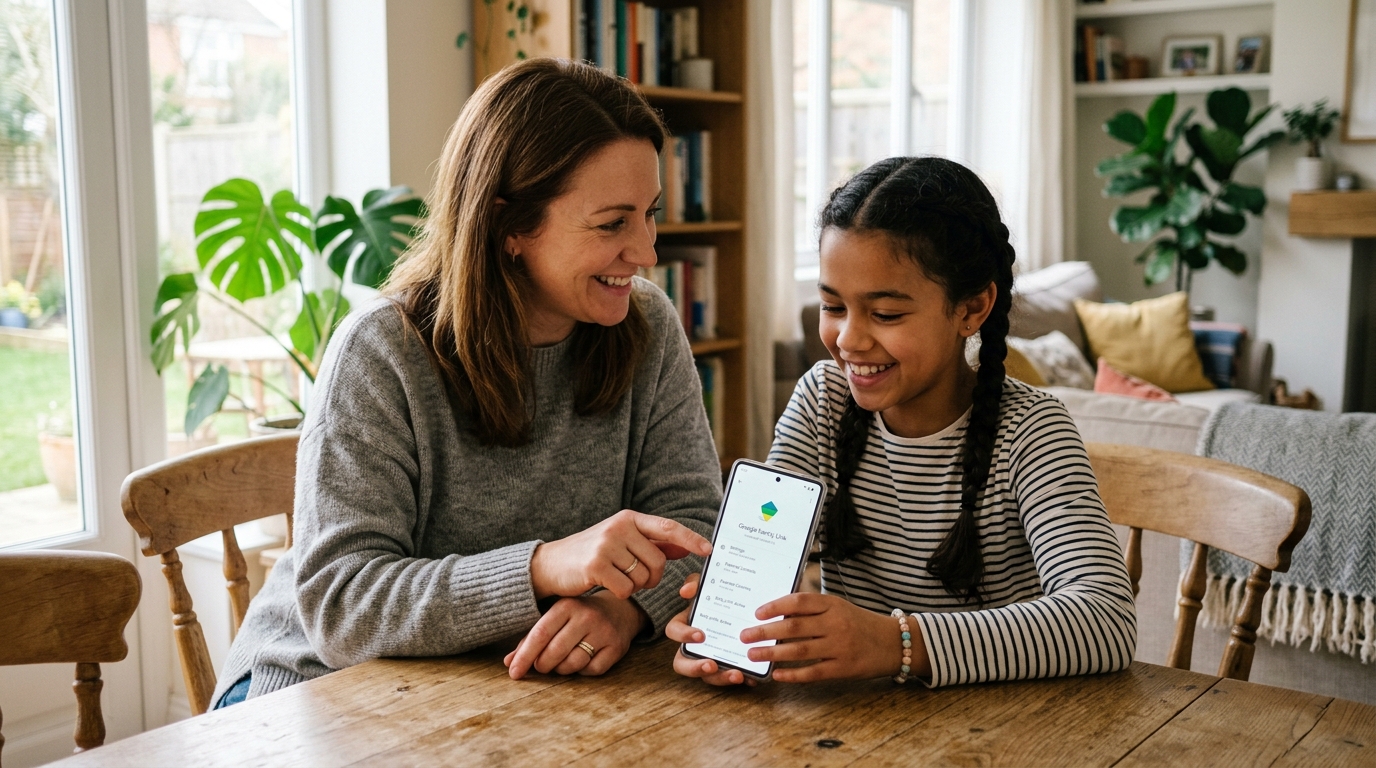
Giving a child a smartphone is like handing them the master key to an infinite digital world. While most parents worry about screen time hours, the most serious vulnerabilities often hide deep within the default factory settings: Background microphone permissions, camera geotagging embedding your exact home coordinates into photo metadata, one-tap in-app purchases triggering accidental credit card charges, and unrestricted AirDrop / Bluetooth file sharing with strangers nearby. Cybersecurity studies indicate that over 82% of children's mobile devices operate on default factory settings without parental hardening, creating immediate entry points for privacy breaches. Here is the definitive step-by-step checklist of the 12 most critical security settings every parent should configure on Android and iPhone (iOS) in under 15 minutes.
Why Factory Default Settings Are Unsafe for Children
Modern smartphones are engineered for adult consumer convenience, not child safety. Proactive configuration is essential.
Phone Security for Kids: 12 Essential Settings Every Parent Must Check
Robust Screen Lock & Secret Backup PIN
⚠️ Critical RiskChildren frequently leave phones unattended at school or the playground. Easily guessed swipe patterns (e.g., \"Z\" shape) or birth-year PINs invite peers or strangers to unlock the device.
Android
Settings > Security & Privacy > Screen Lock > Choose a complex 6-digit PIN or alphanumeric Password. Enable biometric fingerprint/face unlock.
iPhone (iOS)
Settings > Face ID & Passcode > Turn Passcode On > Select 6-Digit Numeric Code. Strictly avoid trivial sequences (\"1234\", \"0000\").
Restricting Camera & Microphone Permissions
⚠️ High RiskInnocent-looking flashlight apps, puzzle games, or photo filter tools can secretly record ambient audio or access the camera in the background.
Android
Settings > Security & Privacy > Permission Manager > Camera & Microphone. Adjust apps so only strictly necessary tools have \"Allow only while using the app\".
iPhone (iOS)
Settings > Privacy & Security > Microphone & Camera. Toggle off green switches for games and utility apps that have no legitimate recording needs.
Disabling Precise Location & Camera EXIF Geotagging
⚠️ Critical RiskWhen camera geotagging is enabled, every photo taken embeds exact GPS coordinates of your home, school, or bedroom into EXIF metadata, visible when shared online.
Android
Open Camera app > Settings gear > Turn OFF \"Location tags\" (Geotagging). Go to Settings > Location > App permissions and revoke background location from social apps and games.
iPhone (iOS)
Settings > Privacy & Security > Location Services > Camera > Select \"Never\". Disable precise location sharing for casual apps.
In-App Purchase Locks & Biometric Payment Authentication
⚠️ Financial RiskA single accidental tap on loot boxes, game gems, or avatar skins can charge hundreds of dollars to the parent's credit card within seconds.
Android
Google Play Store > Profile icon > Settings > Authentication > \"Require authentication for purchases\" > Select \"For all purchases through Google Play\".
iPhone (iOS)
Settings > Screen Time > Content & Privacy Restrictions > iTunes & App Store Purchases > In-app Purchases > Select \"Don't Allow\".
Blocking Sideloading & Unknown App Sources
⚠️ Critical Cyber RiskChildren often search online for \"free modded game APKs\" or cheat versions of popular games. Over 90% of third-party downloaded APKs carry trojans or spyware.
Android
Settings > Apps > Special App Access > \"Install unknown apps\" > Ensure Chrome, Files, and Telegram are set to \"Not Allowed\".
iPhone (iOS)
iOS naturally restricts sideloading. However, check Settings > General > VPN & Device Management to ensure unauthorized enterprise profiles are not installed.
AirDrop, Quick Share & Bluetooth Visibility Restrictions
⚠️ Cyberbullying & Harassment RiskPredators or pranksters on public transit, school buses, or malls can beam unsolicited inappropriate images or malicious links directly to kids' screens (Cyber-flashing).
Android
Settings > Connected devices > Quick Share > \"Who can share with you\" > Set to \"Contacts only\" or \"Your devices\".
iPhone (iOS)
Settings > General > AirDrop > Choose \"Contacts Only\" or \"Receiving Off\". Never leave it on \"Everyone for 10 Minutes\" permanently.
Browser SafeSearch & Adult Web Content Filtering
⚠️ Inappropriate Content RiskEven innocent homework queries or typos can expose children to explicit adult content, violent imagery, or deceptive phishing sites.
Android
Google app > Profile icon > Settings > SafeSearch > Select \"Filter\". In Chrome, enable Enhanced Protection under Privacy & Security > Safe Browsing.
iPhone (iOS)
Settings > Screen Time > Content & Privacy Restrictions > Content Restrictions > Web Content > Select \"Limit Adult Websites\".
Lock Screen Notification Privacy
⚠️ Privacy & Identity TheftLock screen notification previews reveal private messages and two-factor SMS verification codes to anyone glancing at the unattended screen.
Android
Settings > Notifications > Lock screen notifications > Select \"Hide content\" or \"Don't show notifications\".
iPhone (iOS)
Settings > Notifications > Show Previews > Select \"When Unlocked\".
Disabling Personalized Ad Tracking & Profiling
⚠️ Data Privacy RiskAd networks build deep psychological profiles on minors based on app usage, searches, and clicks, serving aggressive, targeted advertisements.
Android
Settings > Security & Privacy > Privacy > More privacy settings > Ads > Tap \"Delete advertising ID\".
iPhone (iOS)
Settings > Privacy & Security > Tracking > Turn OFF \"Allow Apps to Request to Track\". Under Apple Advertising, turn off Personalized Ads.
Cloud Backup & Shared Album Audit
⚠️ Privacy RiskAutomatic syncing of every snapshot to family clouds or public shared albums can lead to unintended exposure of private moments.
Android
Google Photos > Profile > Photo settings > Backup > Review device folders (WhatsApp, Downloads) and exclude non-essential media.
iPhone (iOS)
Settings > Photos > Review \"Shared Albums\" and \"iCloud Photos\". Block invitations to shared albums from unknown email addresses.
Emergency Contacts (ICE) & Medical ID Setup
⚠️ Physical SafetyIf a child is lost, injured, or misplaces their phone, first responders or helpful citizens must be able to contact parents without unlocking the device.
Android
Settings > Safety & emergency > Medical info & Emergency contacts > Add parents' numbers. Enable \"Show on lock screen\".
iPhone (iOS)
Health app > Profile > Medical ID > Edit > Add Emergency Contacts and blood type/allergies. Turn ON \"Show When Locked\".
SmartFamilyEye 360° Intelligent Security Layer
⚠️ Comprehensive ProtectionNative OS settings are fundamental, but tech-savvy kids can easily reset them or find workarounds using online tutorials. You need an tamper-proof parent guardian.
Android
Install SmartFamilyEye, activate Device Administrator & Accessibility permissions, and enable Anti-Tamper Security Mode to prevent unauthorized app uninstallation.
iPhone (iOS)
Pair the child device with the SmartFamilyEye Parent Dashboard to manage real-time location, smart geofencing, and app shields from a unified console.
15-Minute Parental Safety Score
Grab your child's phone and check off these 12 settings. Devices scoring a perfect 12/12 are fully fortified against digital hazards.
Beyond System Settings: Why You Need SmartFamilyEye
Native operating system settings form a great initial perimeter, but curious or tech-savvy children often find loopholes or YouTube bypass tutorials. SmartFamilyEye provides an automated, tamper-proof security shield that closes every gap.
Anti-Tamper & Uninstall Protection
Requires a secret parent passcode for removal and sends an immediate alert if device administration is challenged.
AI Web & Social Media Shield
Actively intercepts adult domains, phishing attempts, cyberbullying keywords, and violent media in real-time, even in incognito mode.
Precise Geofencing & Live Location
Delivers instant arrival and departure notifications when your child enters or leaves school, home, or custom safety perimeters.
24/7 Threat Radar & Activity Insights
Monitors new app installations, nighttime screen spikes, and suspicious activities, delivering concise summaries to your parent dashboard.
Frequently Asked Questions About Kids Phone Security
❓ Will applying these 12 security settings slow down my child's phone or drain the battery?
Quite the opposite! Revoking background location pings, microphone listeners, and ad-tracking telemetry noticeably conserves battery life and speeds up system responsiveness.
❓ Can my child easily reverse or change these settings on their own?
Without parent PIN locks (like Screen Time passcode or Family Link permissions), children can browse the settings menu and re-enable permissions. Installing SmartFamilyEye prevents unauthorized setting changes and instantly alerts you if tampering is detected.
❓ If I turn off camera location permissions, how will I find my child in an emergency?
Disabling photo geotagging and game location access does not affect dedicated family tracking. SmartFamilyEye utilizes encrypted, parent-authorized background GPS channels to maintain accurate live tracking without exposing location data to third parties.
❓ How long does it take to audit and configure all 12 settings?
Following our visual step-by-step guide takes just 10 to 15 minutes. We strongly recommend walking through the steps together with your child, explaining the safety reasons behind each setting to foster digital trust.
Secure Your Child's Smartphone in 15 Minutes
Lock down vulnerabilities, activate SmartFamilyEye's 360° protection shield, and enjoy peace of mind with zero hidden bills and zero location leaks.